Unit 2 Practical 8
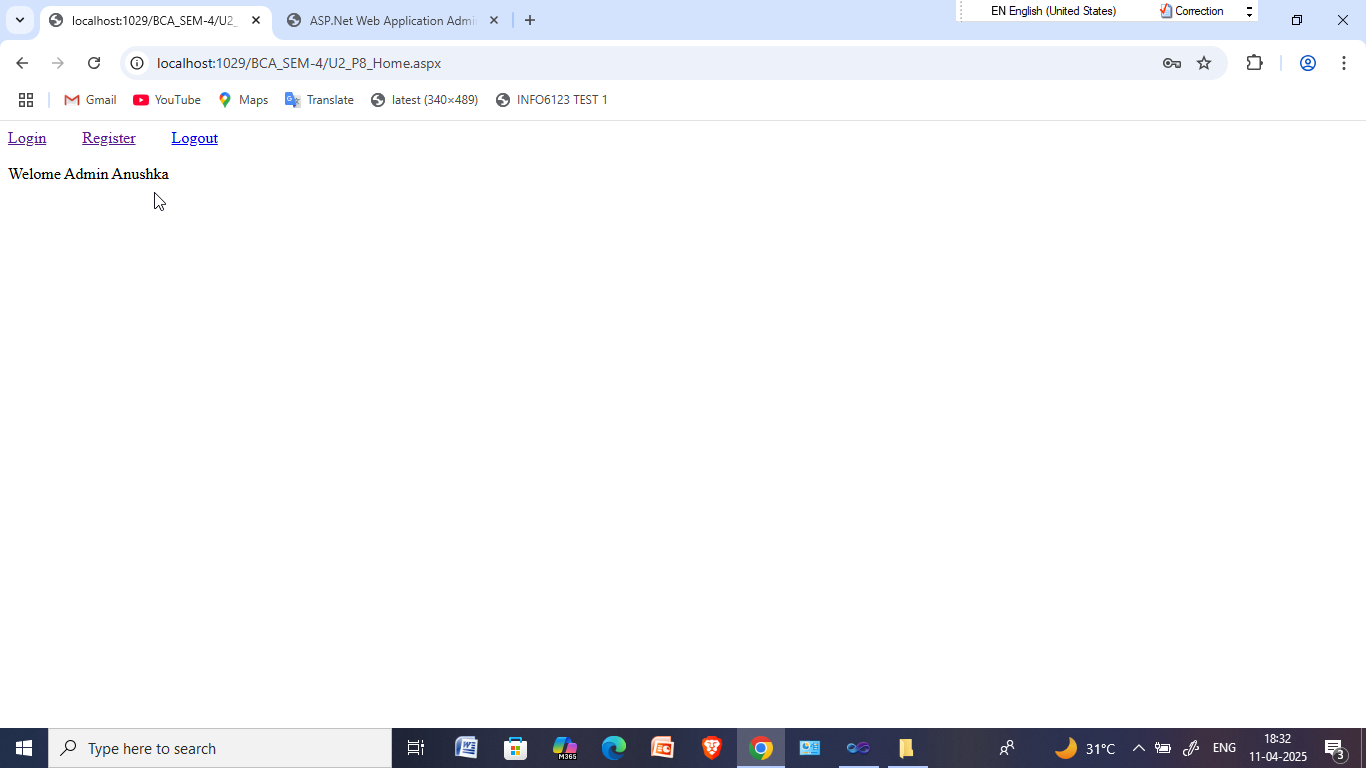
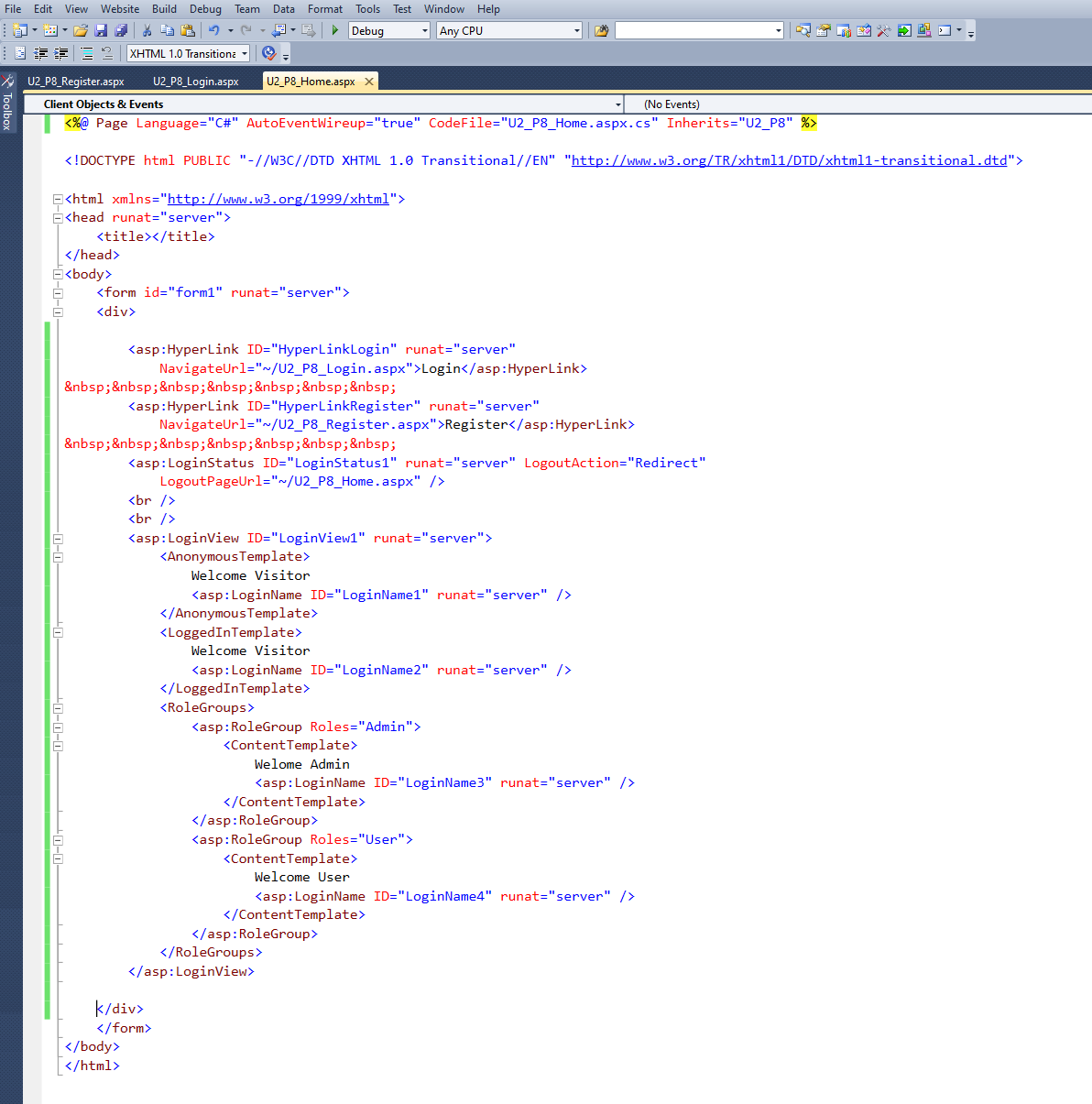
Design a web site which allows user to login. As user logins, the home page display Welcome message based on the type of user. For example, for anonymous user show "Welcome Visitor", for User show "Welcome <UserName>" and for any user belongs to admin role, show "Welcome Administrator".
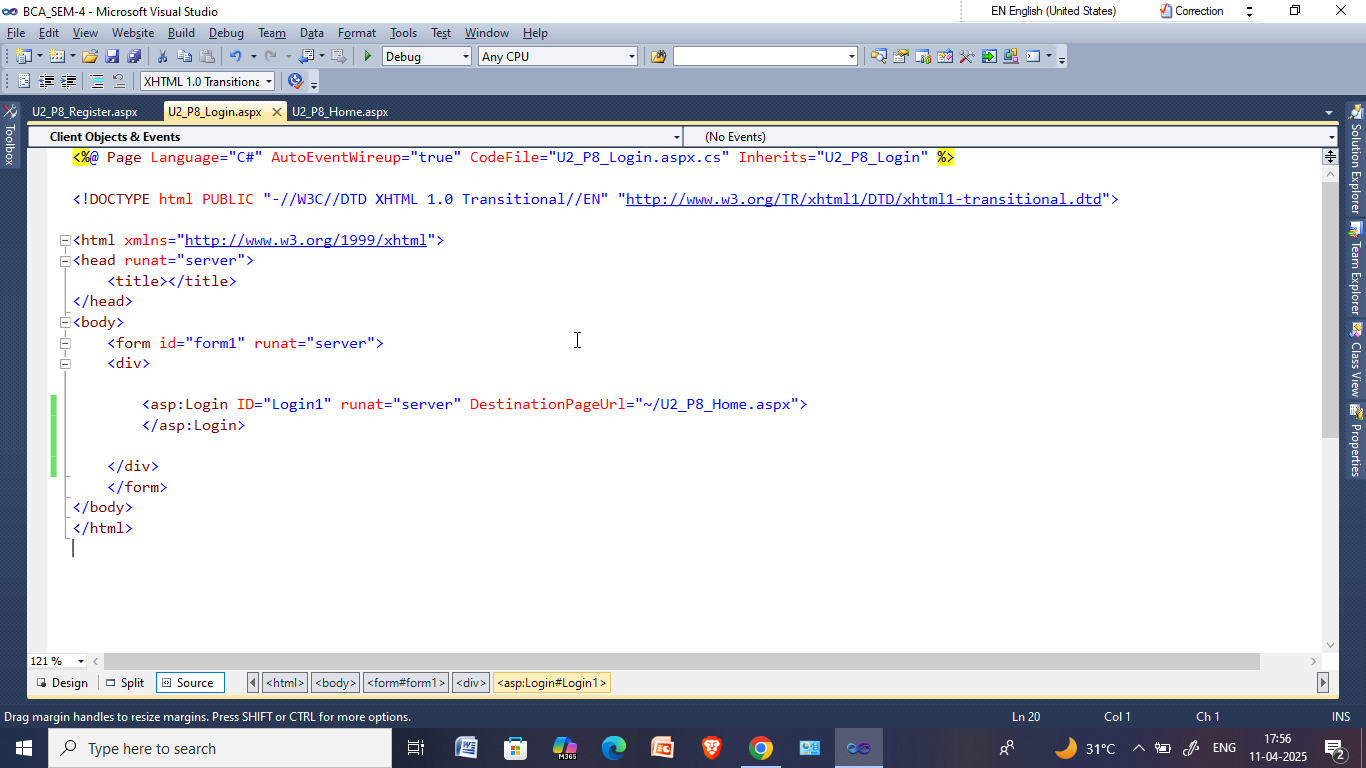
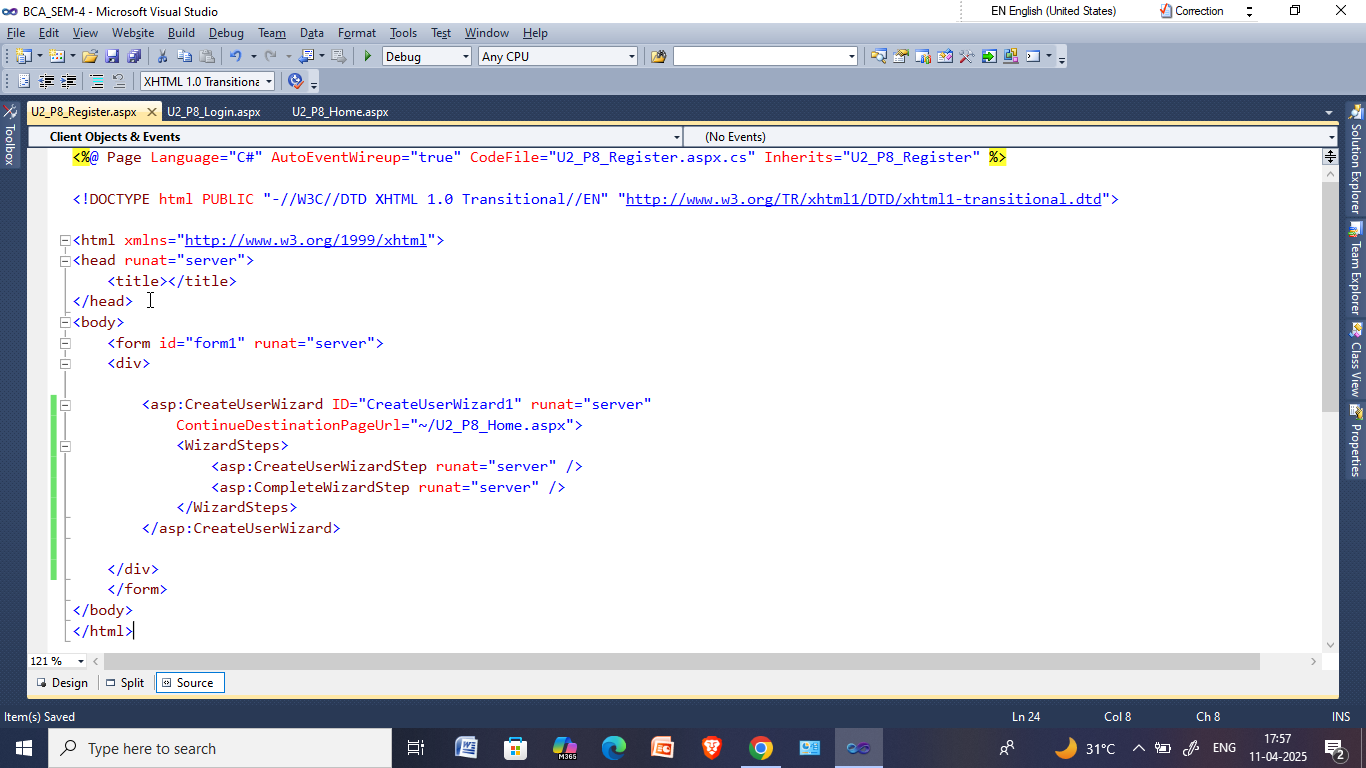
in this we have to create 3 webforms named as " U2_P8_Home.aspx ", " U2_P8_Login.aspx " and " U2_P8_Register.aspx ".
U2_P8_Home.aspx
U2_P8_Login.aspx
U2_P8_Register.aspx
After completing above designing and set proper properties, you have to follow these steps:
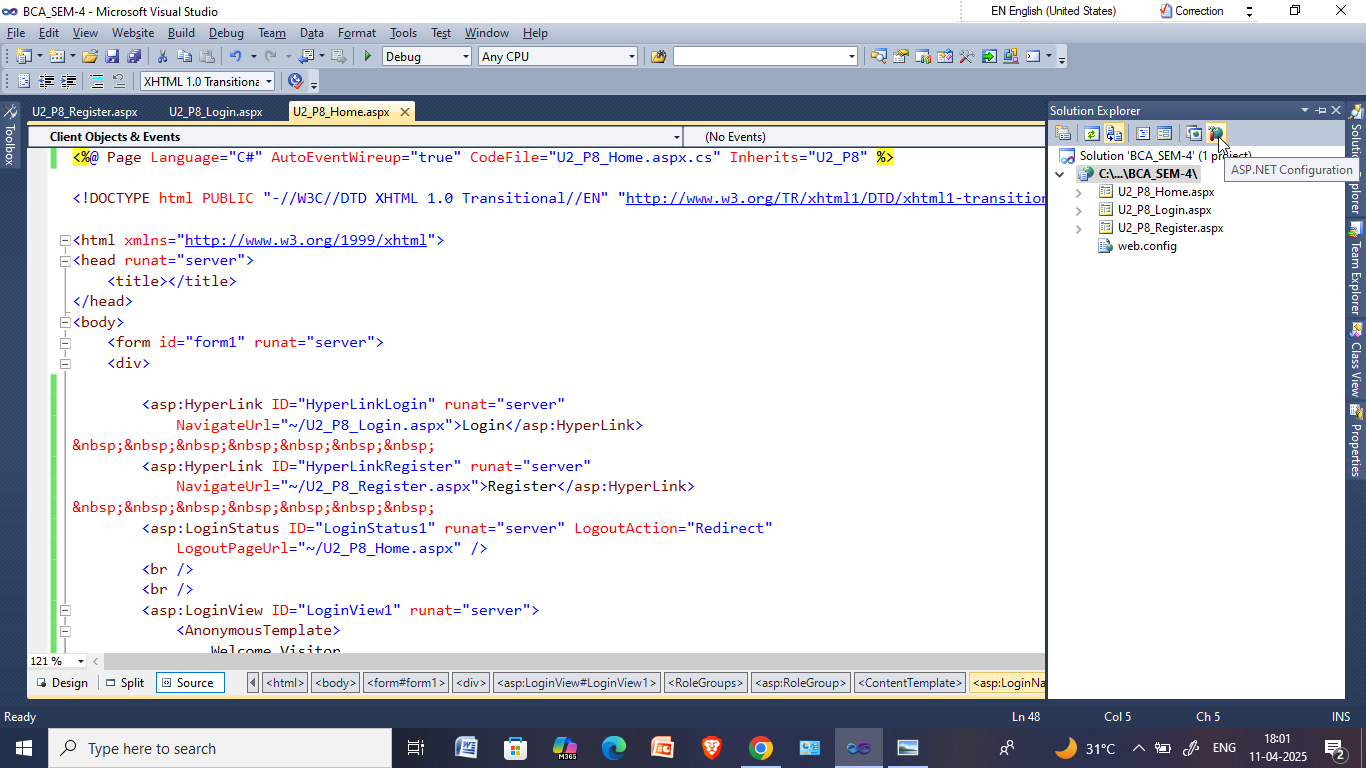
Step1: Click on the "ASP.NET Configuration" in the solution explorer as shown in the below image and it will redirect to the browser.
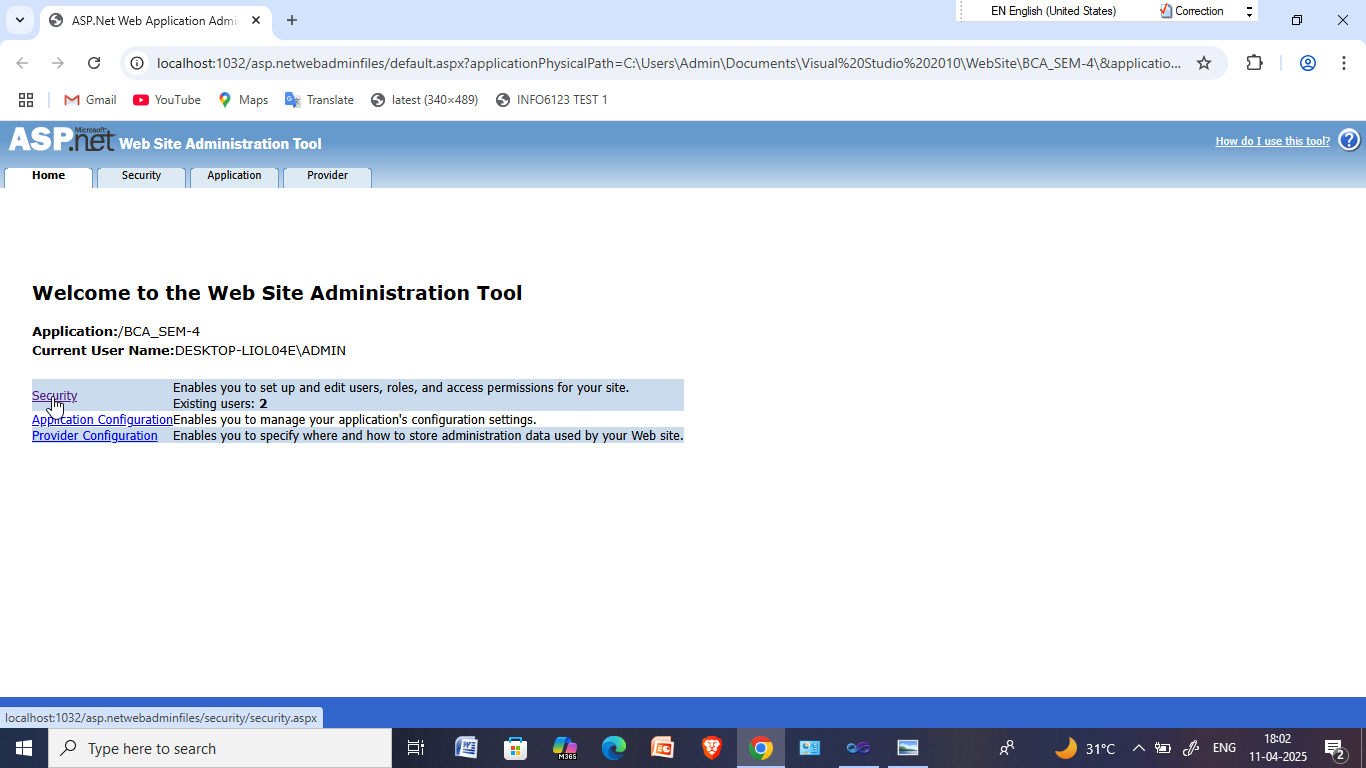
Step2: Now click on the "Security".
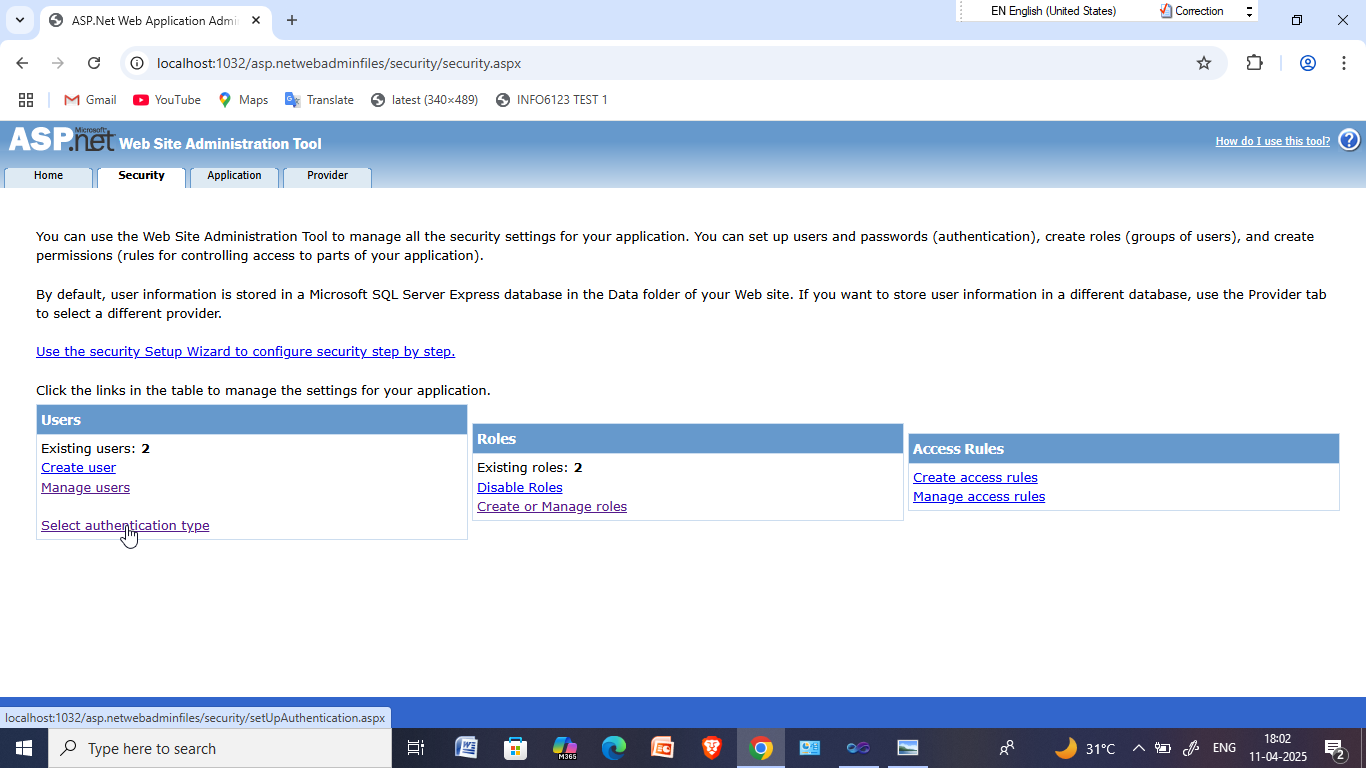
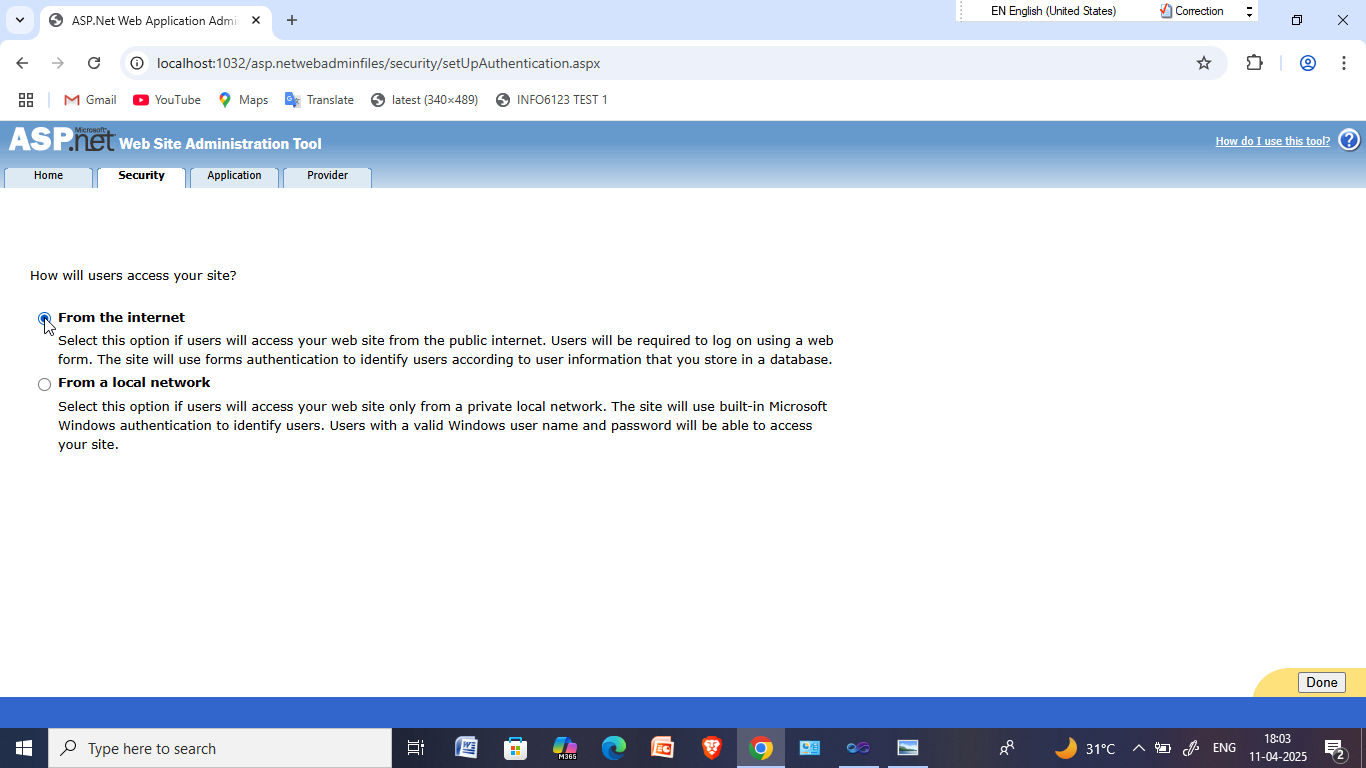
Step3: Now click on the " select authentication type " and select " from the internet " and click on done at right bottom.
Step:4: Now click on the " Enable roles ".
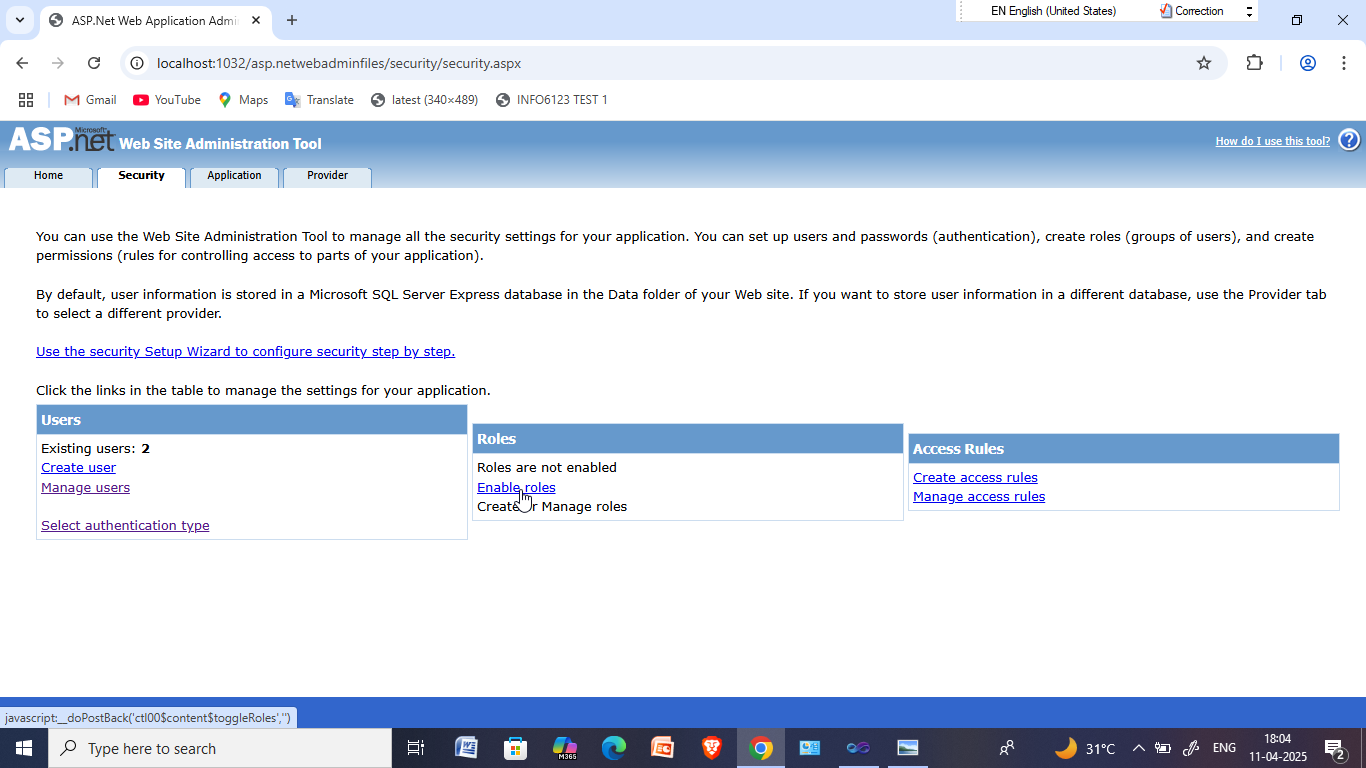
Step5: Now click on " Create or Manage roles "
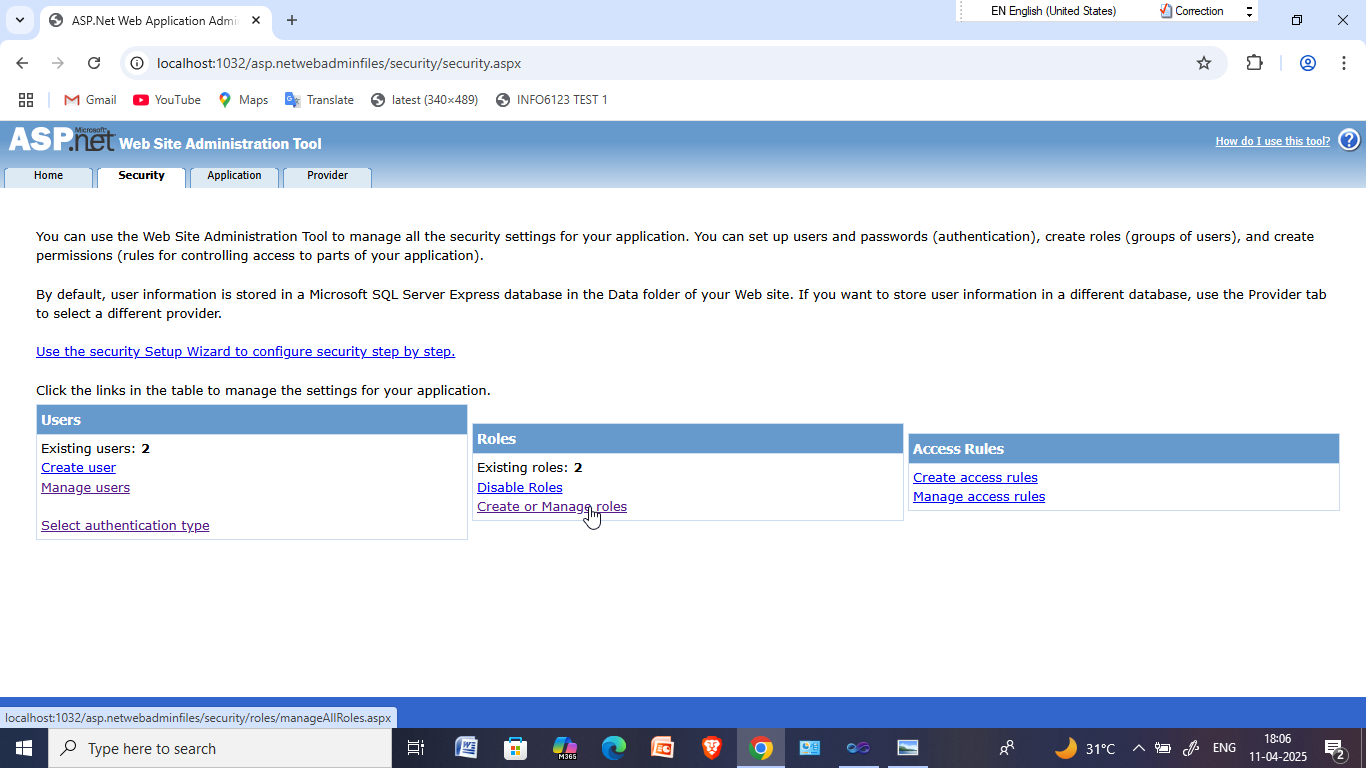
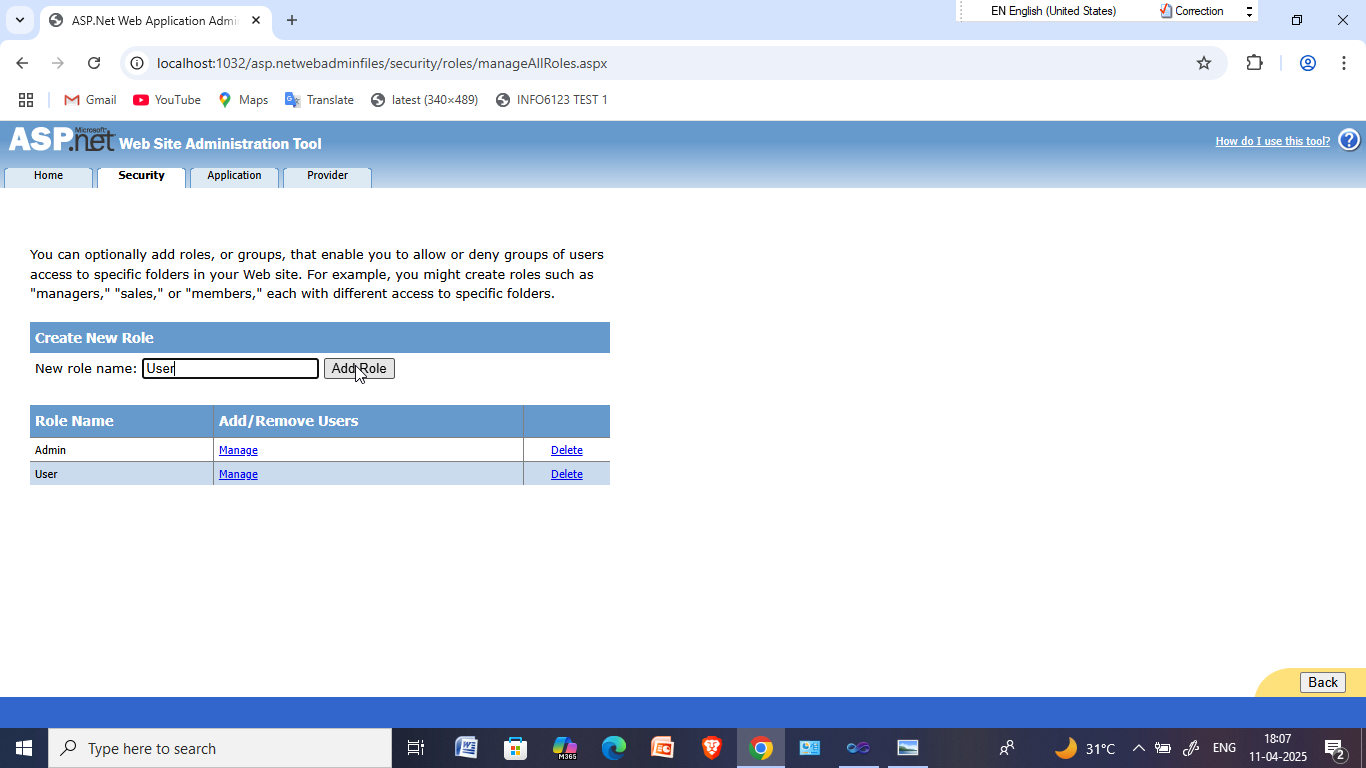
Step6: Now add " Admin " and " User " role.
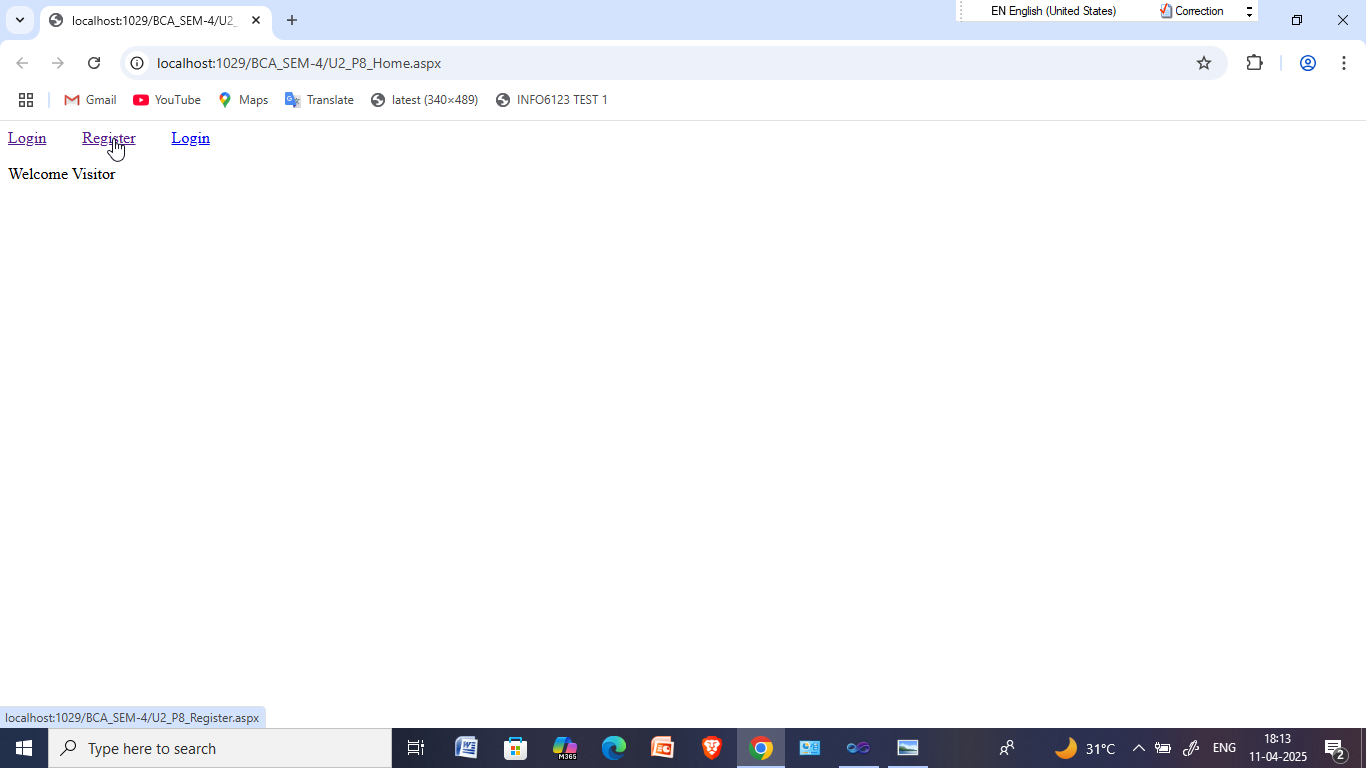
Now run "U2_P8_Home.aspx" page
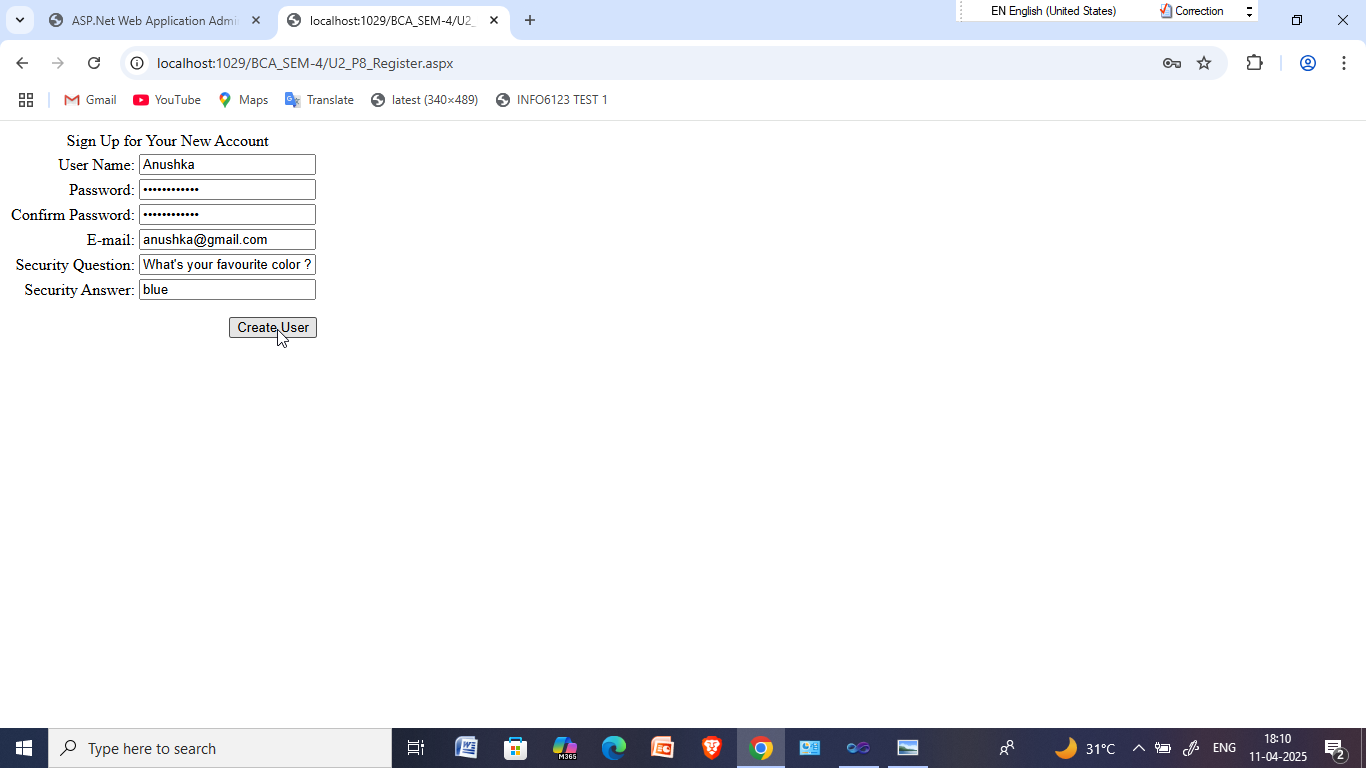
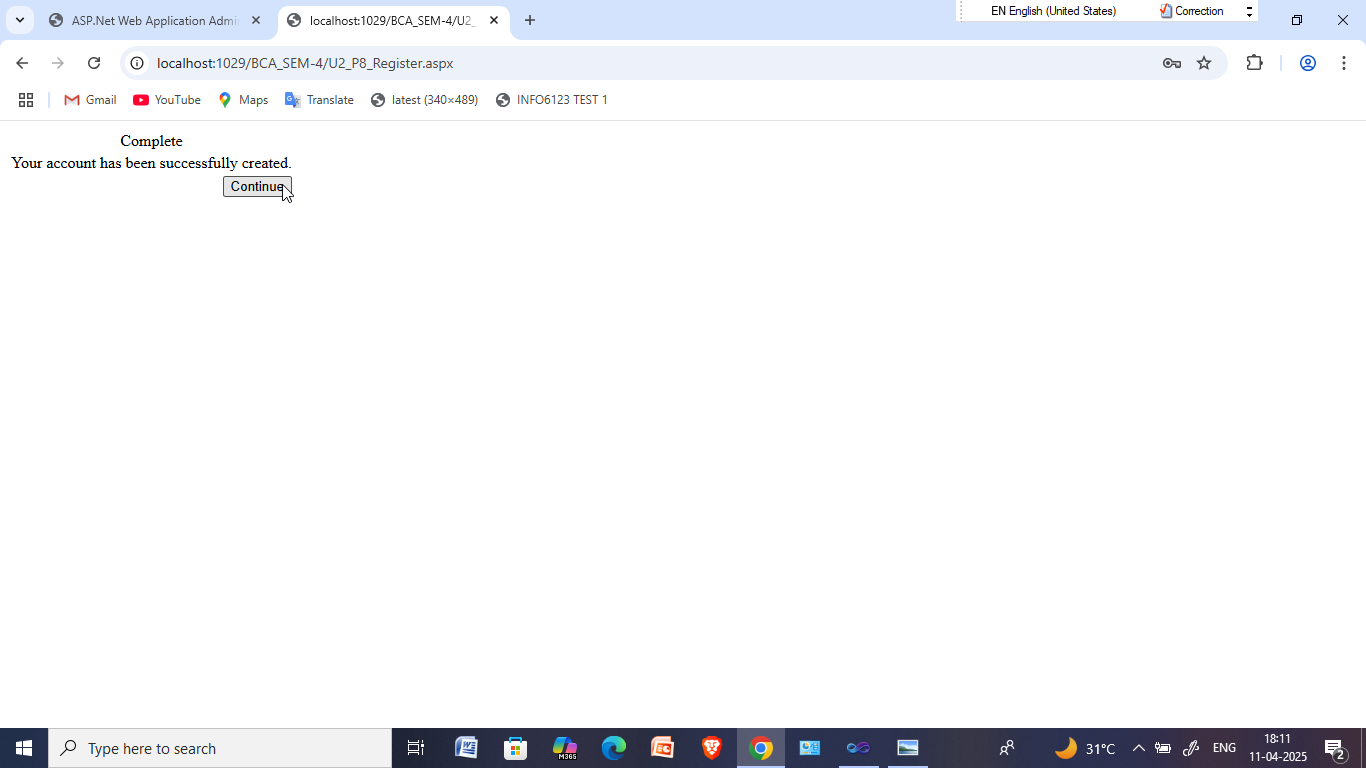
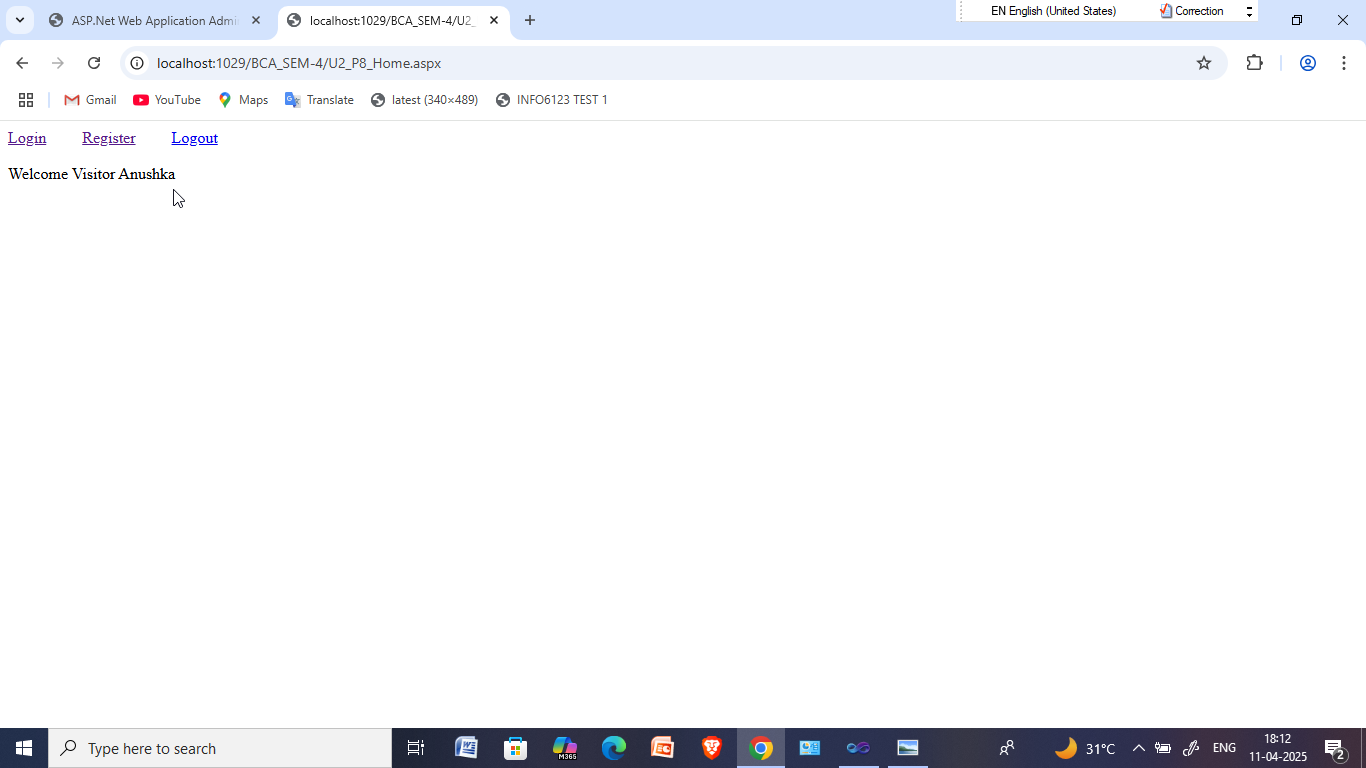
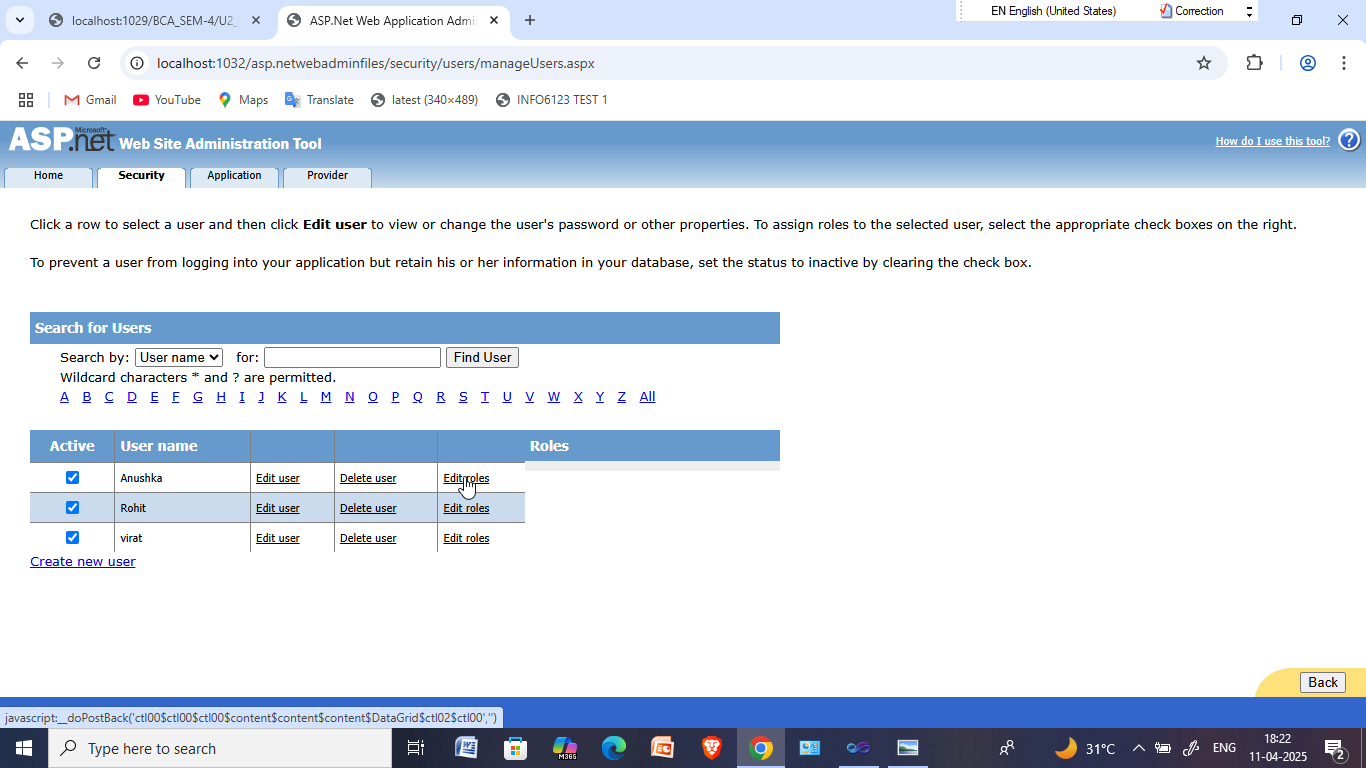
Now go to " ASP.NET Configuration " and under security section click on " Manage users "
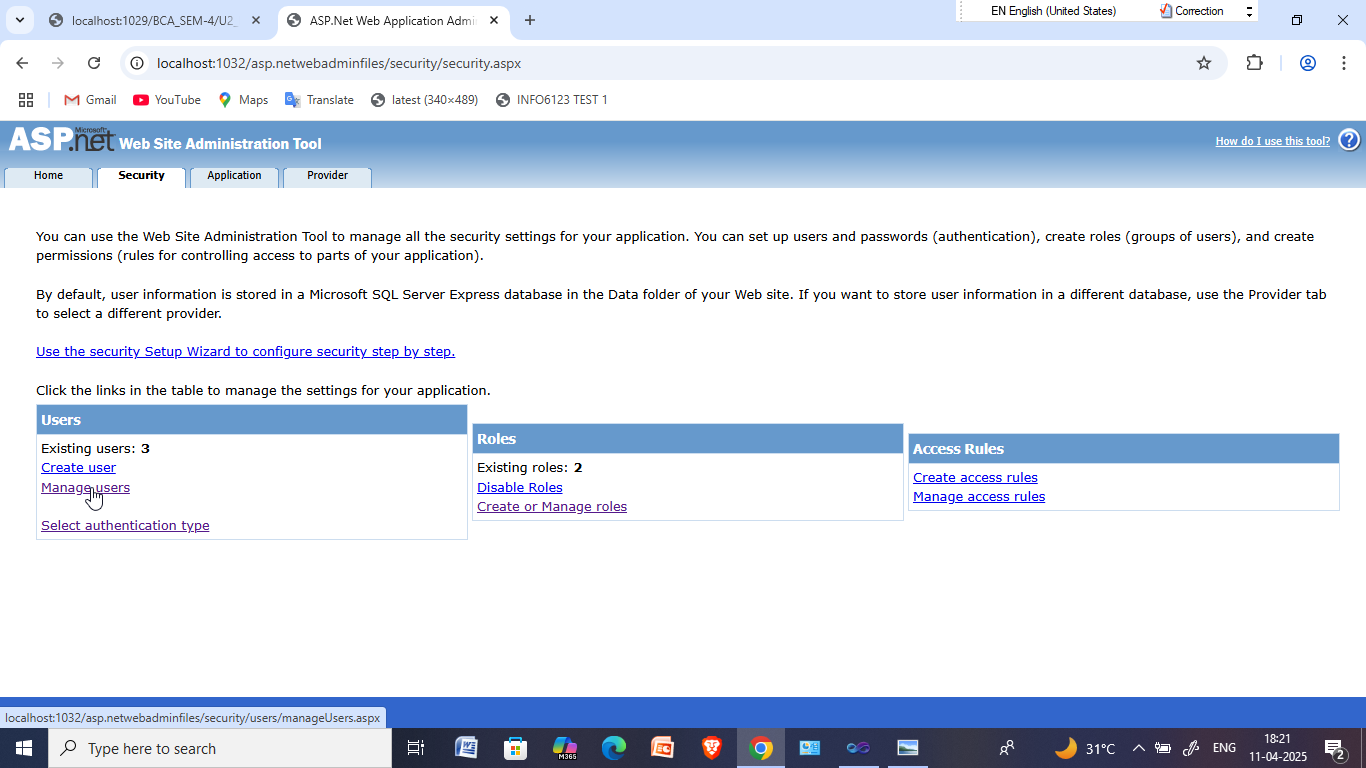
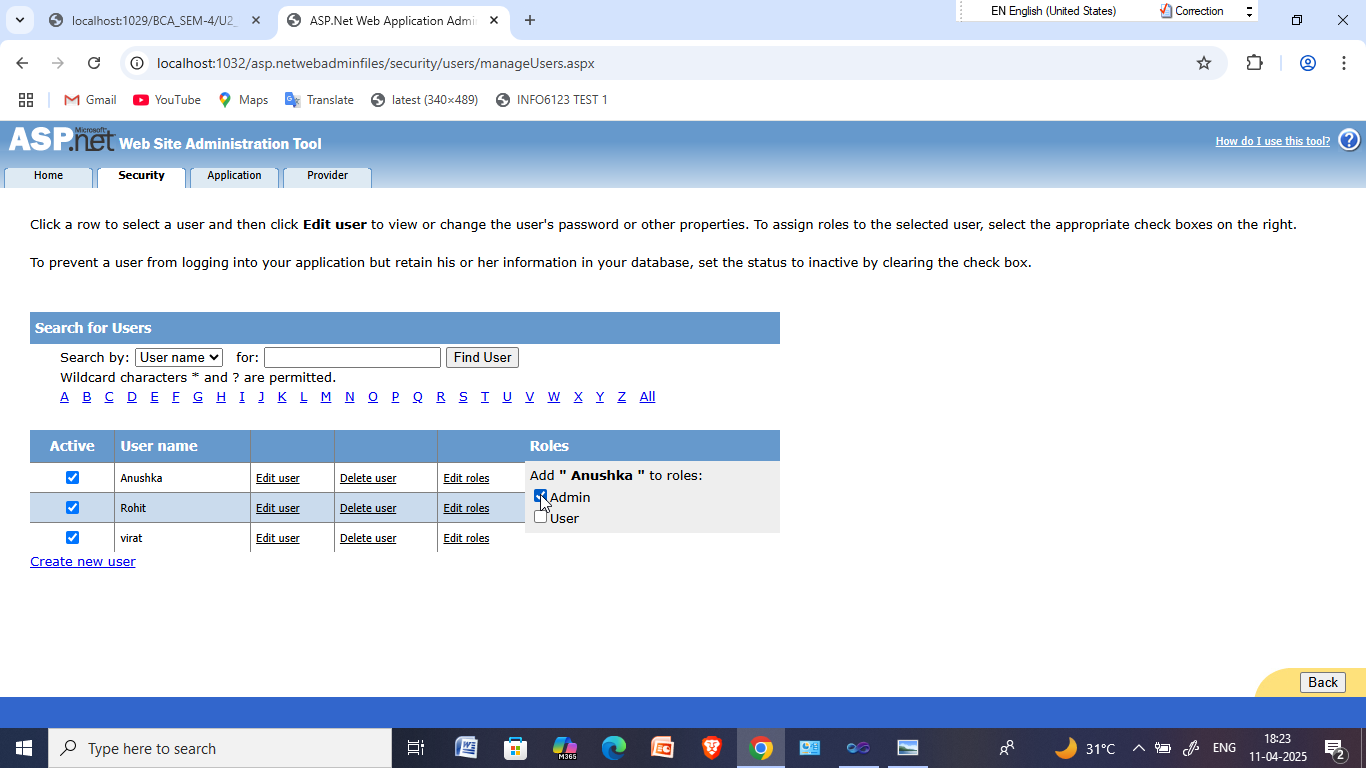
Now click on " Edit roles " and select admin or user whatever you want.
Now login with username which you have recently changed its role
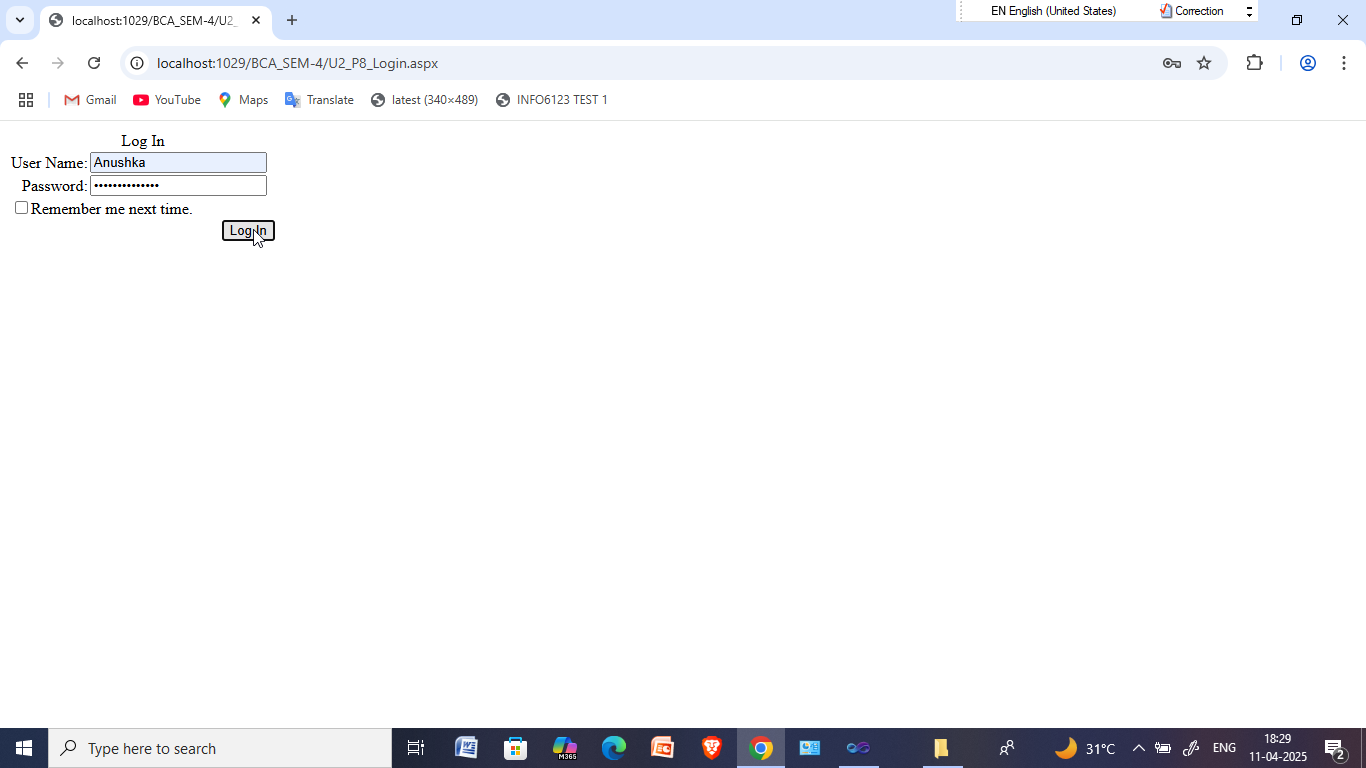
Now you can see there is role specified which we have just set.